Your assistant can work with your measurement context.
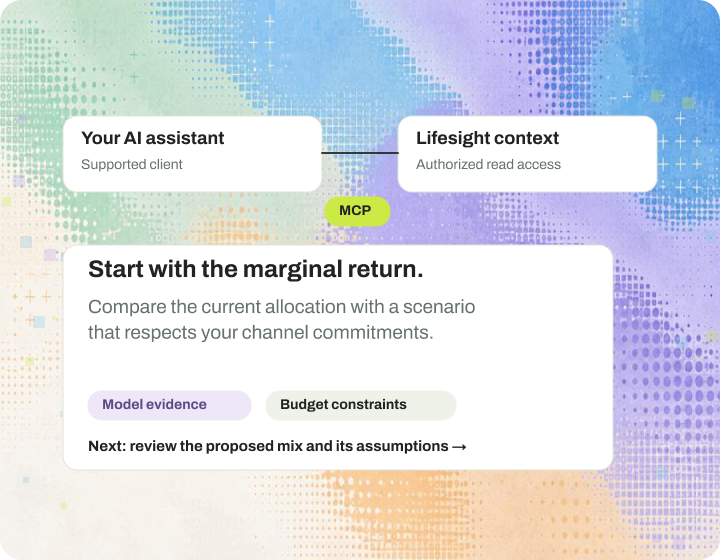
Connect Claude or ChatGPT to Lifesight with secure, read-only access. Bring a concrete question, then review the evidence behind the answer.
Connect
Authorize the right read access.
Sign in through OAuth from Claude or ChatGPT. Your access mirrors your Lifesight workspace permissions. Check what the connection can see before you rely on an answer.
Sign in with OAuth. Access is read-only at launch.
Follow the setup guide for Claude or ChatGPT.
Ask
Give the assistant a business question.
Specify the outcome, period and scope you want to understand. Ask it to explain your results or help you prepare for a planning meeting. Or start from a ready-made prompt in the Skills Library.
Verify
Read the answer with its sources and limits.
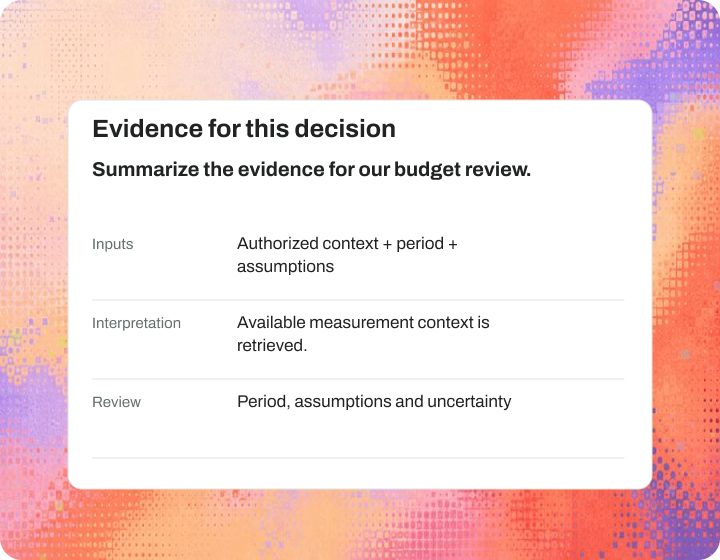
Review the evidence, assumptions and available read access. Every request is recorded in a full audit trail, so your team can see who asked what.
From waiting on reports to asking in Claude or ChatGPT.
Get answers in minutes, in the assistant your team already uses, with security built in.
Before
Answers take days.
Send a request to an analyst and wait in the queue.
Pull exports from several tools and reconcile them.
Rebuild the story in a deck before every meeting.
After
Answers take minutes.
Ask in Claude or ChatGPT, in plain language.
Get answers from your live causal model.
Sign in with OAuth. Access mirrors your workspace permissions.
Every request is recorded in a full audit trail.
Backed by SOC 2 Type II, ISO 27001, GDPR and HIPAA ready controls.
How it works
Connect. Retrieve. Review.
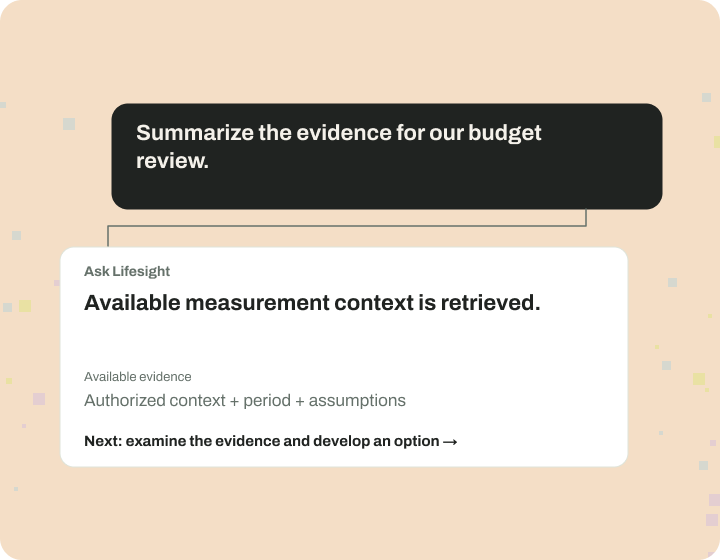
Summarize the evidence for our budget review.
Each step keeps the answer tied to your measurement, with read-only access.
Connect Claude or ChatGPT
Follow the setup guide and sign in with OAuth.
Ask a scoped question
Include the business outcome, period and relevant plan context.
Retrieve available evidence
The assistant reads only what your workspace permissions allow.
Review the response
Check assumptions and evidence before acting; this example is read-only.
People + agents
Your assistant reads. Your team decides.
The connected assistant retrieves available measurement context through authorized read access. It cannot make changes, so your team checks the answer and makes the call.
Use this prompt library to ask your first MCP questions.
Work with Lifesight experts to establish your measurement program and put agents to work. Every engagement is scoped individually, with agreed responsibilities and ongoing support.
Model Context Protocol. It is a standard way for AI applications to connect with tools and data sources.
Does connecting MCP grant unlimited access?
No. Access is read-only at launch and mirrors your Lifesight workspace permissions. Every request is recorded in an audit trail.
Where are installation instructions?
Use the current Lifesight MCP setup page and product documentation. Client support and setup steps can change, so the live instructions are the source of truth.
Does MCP execute changes to ad platforms?
No. Lifesight MCP is read-only at launch. An answer from your assistant is not a change to any ad platform.
Does MCP change the model’s accuracy?
No. MCP provides another way to access and use available Lifesight context. Method quality still depends on the underlying data, design, assumptions and validation.
Keep exploring.
Platform
Ask Lifesight
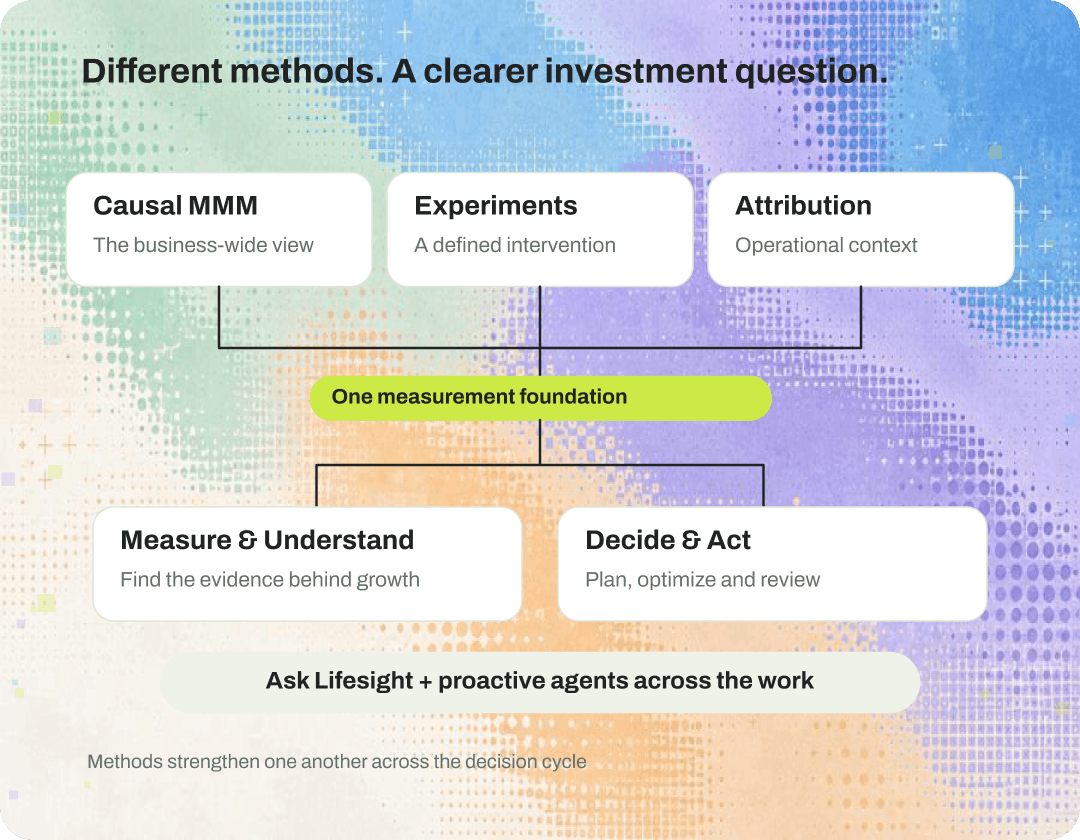
Explore measurement, planning and performance in plain language. Work with the context of your business and carry the answer into a useful next step.
Platform
Integrations
Bring media and business outcome data into a shared measurement foundation. Start with the connections needed to answer your most important questions.
Lifesight
Security & trust
Review the data, access and operational controls your organization needs, with the current security documentation available through the Lifesight Trust Center.